
Obsidian + Claude Code: Non-Tech Guide to Build Your AI-Powered Second Brain
If you’ve heard about Claude Code but feel intimidated because it’s “for developers”, this is your entry point.

Tags: #guide #claude-code #obsidian #setup #non-technical
Why This Guide Exists
Most Claude Code tutorials assume you’ll run it inside an IDE (like VS Code or Cursor). That works great for software engineers, but it alienates everyone else.
The truth? Claude Code doesn’t need an IDE. It works anywhere there’s a terminal — including alongside Obsidian, the note-taking app you may already use.
This guide is for non-technical users — managers, writers, researchers, strategists, knowledge workers — who want an AI assistant that can actually do things on their computer, not just chat.
Part 1: What Are We Even Talking About?
What is an IDE?
An IDE (Integrated Development Environment) is software that programmers use to write code. Think of it as Microsoft Word, but for code. Examples: VS Code, Cursor, IntelliJ.
Why it feels intimidating:
Cluttered interface full of panels, tabs, and icons you don’t recognize
Built for coding — file trees, debuggers, terminal panels everywhere
Assumes you know what “extensions”, “linting”, “Git” mean
The learning curve is steep if you’ve never coded
What is Claude Code?
Claude Code is Anthropic’s AI agent that runs in your terminal. Unlike ChatGPT or the Claude web app (which only talk to you), Claude Code can:
📂 Read and write files on your computer
🔍 Search through your documents
🌐 Browse the web for up-to-date info
⚡ Run commands (convert files, organize folders, etc.)
🧠 Remember context across a working session
It’s like having a very capable assistant sitting at your computer.
What is Obsidian?
Obsidian is a free, local-first note-taking app that stores everything as simple Markdown files on your computer. No cloud lock-in. Your notes are just text files in a folder.
So why combine them?
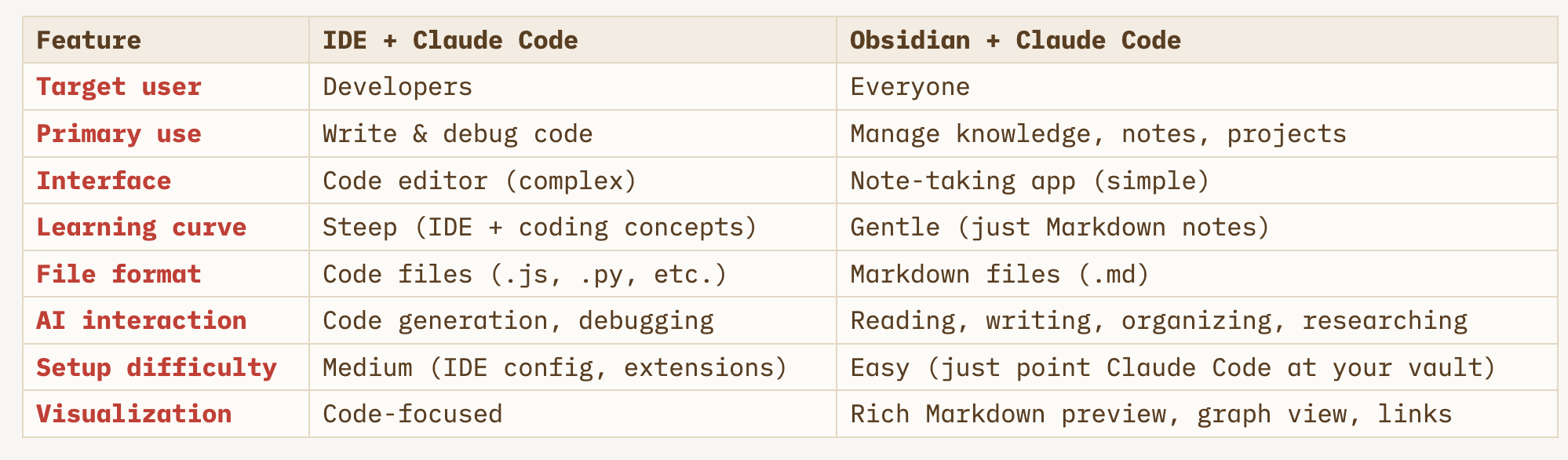

Obsidian + Claude Code gives you a beautiful, familiar workspace (Obsidian) where your AI assistant (Claude Code) can read your notes, create new ones, organize your thinking, research topics, draft communications, and manage projects — all without you ever touching a code editor.
Part 2: What You Get (Benefits for Non-Tech Users)
🎯 1. A Workspace You Actually Understand
Obsidian looks like a note-taking app because it is one. There’s no learning curve for code editors. You write notes, organize them in folders, and link ideas together. That’s it.
🤖 2. An AI That Does Things, Not Just Says Things
Regular chatbots give you text. Claude Code gives you actions:
“Organize my inbox notes by topic” → it actually moves the files
“Summarize all my meeting notes from this week” → it reads them and writes a summary
“Draft an email to the team about Q1 priorities” → it reads your OKR doc and drafts it
“Create a project plan for the product launch” → it creates files, checklists, structure
📁 3. Your Data Stays on Your Computer
Unlike cloud-based AI tools, your notes never leave your machine unless you explicitly choose to share them. Obsidian stores everything locally. Claude Code reads files locally.
🔗 4. Context-Aware AI
Because Claude Code can read your entire vault, it understands your world:
Your priorities (from weekly/daily notes)
Your projects (from project files)
Your writing style (from past notes)
Your organizational system (from folder structure)
This is dramatically more useful than pasting text into a chatbot window.
✏️ 5. No “Copy-Paste” Workflow
With a web chatbot, you copy your content in, get a response, copy it out, paste it somewhere. With Claude Code + Obsidian, you just say “update the project status in my weekly note” and it does it — directly in the file.
🧩 6. It Grows With You
Start simple (note-taking + occasional AI help). Over time, add more structure (templates, daily notes, project tracking). Claude Code adapts to whatever system you build.
Part 3: What You Need
Before we start, let’s gather what you need:
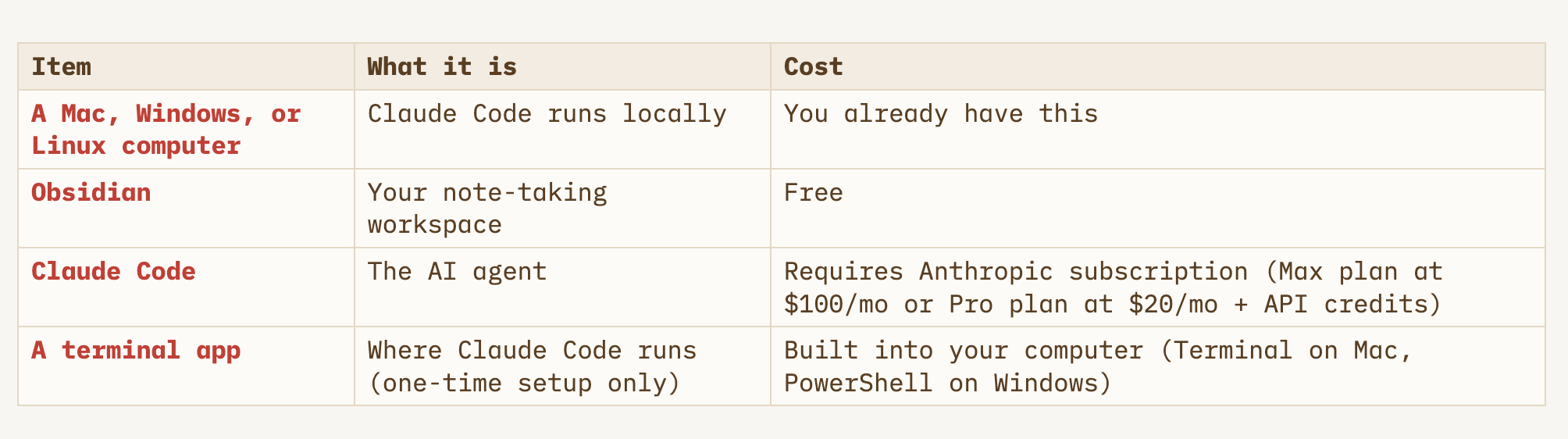
💡 “Do I need to know how to code?” — No. You need to type a few commands once during setup, then you’ll mostly interact through natural language.
Part 4: Step-by-Step Setup
Step 1: Install Obsidian
Go to
https://obsidian.md
Download for your operating system
Install and open it
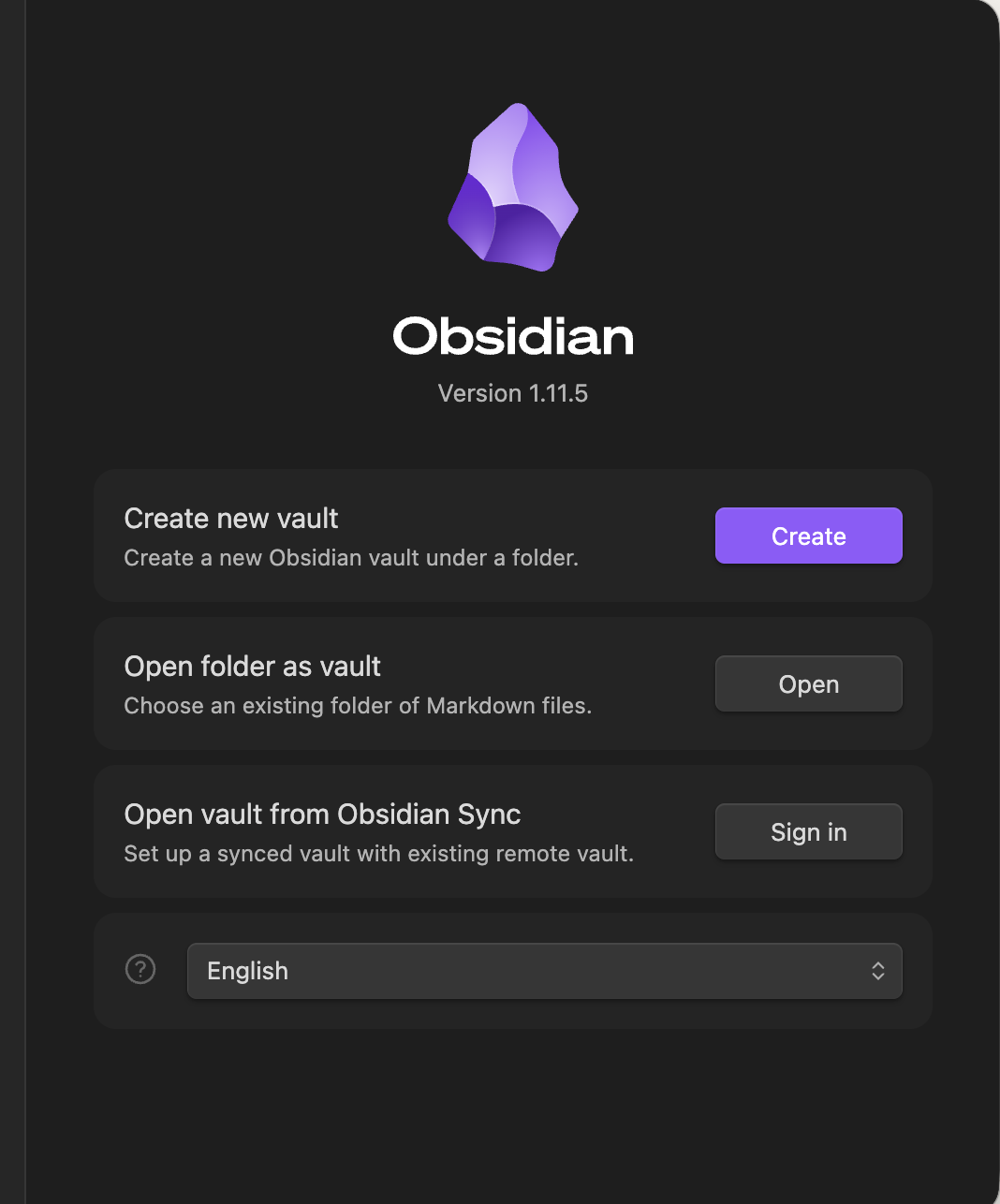
Create a new vault (or open an existing one)
A vault is just a folder on your computer where Obsidian stores your notes
Choose a location you’ll remember, like
Documents/MyVault
Step 2: Install Claude Code
Open your terminal and run:
On Mac:
brew install claude-code
Don’t have Homebrew? Install it first: paste
/bin/bash -c "$(curl -fsSL https://raw.githubusercontent.com/Homebrew/install/HEAD/install.sh)"into Terminal. See brew.sh for details.
On Windows / Linux:
npm install -g @anthropic-ai/claude-code
This requires Node.js (v18+). Download it from nodejs.org if you don’t have it.
Verify it worked:
claude --version
📖 For full details and alternative install methods, see the official Claude Code documentation and the Getting Started guide.
Step 3: Set Up Authentication
Claude Code needs to know your Anthropic account. Open Terminal app and Run:
claude
It will open a browser window to authenticate. Log in with your Anthropic account and authorize.
💡 If you have a Max subscription ($100/mo), you get Claude Code included. If you have a Pro subscription ($20/mo), you can use it with API credits. Check Anthropic’s pricing page for current details.
Step 4: Use Claude Code Inside Obsidian
Now you need a way to interact with Claude Code from within Obsidian. Pick one of the two options below:
Option A (Recommended): Install Claudian Plugin
Claudian is a free Obsidian plugin that gives Claude Code a polished chat interface right inside Obsidian — no terminal knowledge needed.
Why Claudian is the best experience:
💬 Chat UI inside Obsidian — talk to Claude Code like a messaging app, not a terminal
📎 Context-aware — it automatically shares the note you’re viewing, so Claude knows what you’re looking at
🖼️ Vision support — drag-and-drop images for Claude to analyze
✏️ Inline editing — select text in a note and ask Claude to rewrite it, with word-level diff previews
🔧 Slash commands & skills — extend Claude with reusable workflows and custom agents
🔒 Security controls — permission modes and vault confinement for safety
How to install:
Method 1: Manual install (simplest)
Go to the Claudian GitHub releases page
Download these 3 files from the latest release:
main.js,manifest.json,styles.cssIn your vault folder, create the folder
.obsidian/plugins/claudian/Place the 3 downloaded files into that folder
In Obsidian, go to Settings → Community Plugins and enable Claudian
Method 2: Using BRAT (auto-updates)
In Obsidian, install the BRAT plugin from Community Plugins
Open BRAT settings and click “Add Beta Plugin”
Paste the URL:
https://github.com/YishenTu/claudianBRAT will install and keep Claudian up to date automatically
Start using it: Click the bot icon in Obsidian’s sidebar → start chatting. That’s it!
📖 Full docs and source code: github.com/YishenTu/claudian
Option B: Use a Terminal Plugin Inside Obsidian
If you prefer using Claude Code through the terminal (or want a more hands-on feel), you can embed a terminal panel directly inside Obsidian.
How to install:
In Obsidian, go to Settings → Community Plugins
If this is your first community plugin, you’ll need to click “Turn on community plugins” and confirm
Click Browse and search for “Terminal”
Install “Terminal” by polyipseity (GitHub)
Enable the plugin and restart Obsidian if prompted
How to use it:
Open the terminal panel: use the Command Palette (
Cmd/Ctrl + P) → type “Terminal” → select “Open Terminal”The terminal opens at your vault root — Claude Code will automatically work with your notes
Type
claudeand press Enter to start a sessionStart talking to Claude in natural language
💡 Tip: You can also use your system terminal separately. Just navigate to your vault folder first:
cd ~/Documents/MyVault
claude
Find your vault path in Obsidian: Settings → About (at the bottom) → Vault path.
Part 5: Your First Conversation with Claude Code
Once Claude Code is running in your vault, the workspace looks like this:
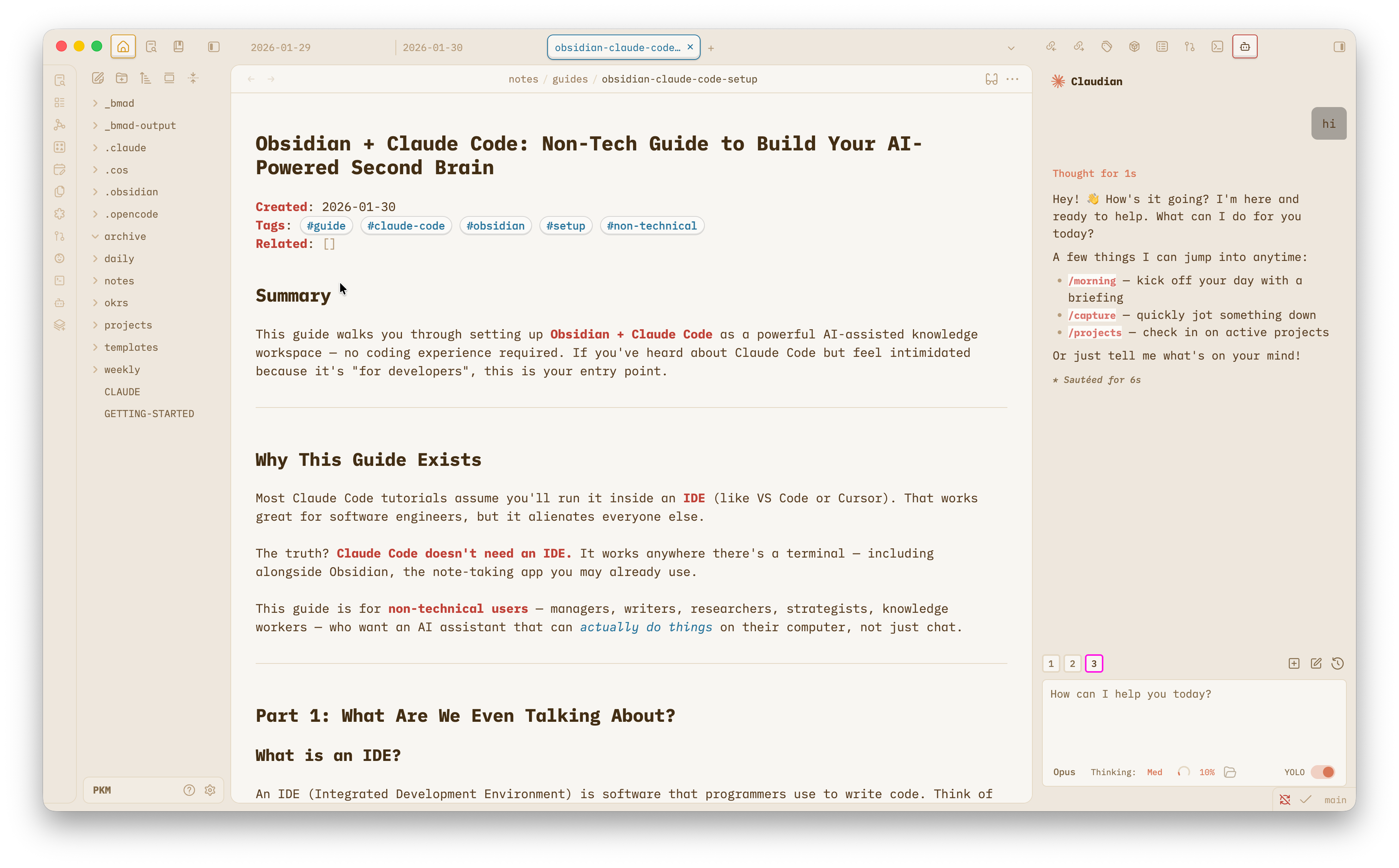
Note: I installed a theme for Obsidian called “Primary”. You can select any themes & install yourself
Let Claude Code set up the workspace for you
Enter this prompt: REMEMBER to replace content inside [ ] to fit your case
Hi! I want to set up this Obsidian vault as my AI-assisted second brain. Here’s what I’m looking for:

**Context:**

- I’m a [your role/profession] who wants to organize [notes/research/projects/ideas]

- My main use cases are: [e.g., project management, knowledge synthesis, daily journaling]

- I’m comfortable with [basic/intermediate/no] technical setup

**What I’d like help with:**

1. **Folder structure**: Create an intuitive organization system (e.g., Projects, Areas, Resources, Archive)

2. **Templates**: Set up note templates for common use cases like:

   - Daily notes

   - Meeting notes

   - Project pages

   - Book/article summaries

3. **Automation**: Add helpful scripts or plugins for:

   - Auto-generating links between related notes

   - Creating index pages

   - Tagging suggestions based on content

4. **AI integration points**: Show me where/how I can use Claude to:

   - Summarize my notes

   - Generate connections between ideas

   - Create content from my knowledge base

**Current state of my vault:**

[Describe if it’s empty, has some notes, or is chaotic and needs organizing]

Can you create the folder structure, essential templates, and a README guide explaining how to use this system? Please include examples and make it beginner-friendly.
Claude Code will do the magic for you
Part 6: Day-to-Day Usage Tips
🔄 Starting a Session
Every time you want to use Claude Code:
With Claudian: Click the bot icon in Obsidian’s sidebar → start chatting
With Terminal plugin: Open the terminal panel (
Cmd/Ctrl + P→ “Terminal”) → typeclaude→ start talking
💬 Talk Naturally
You don’t need special commands or syntax. Just describe what you want in plain English:
✅ “Can you read my weekly note and tell me what I should focus on today?”
✅ “Create a meeting notes template with sections for attendees, agenda, decisions, and action items”
✅ “Find everything I’ve written about budgeting and create a summary note”
📌 Point to Specific Files
If you want Claude Code to work with a specific note:
“Read the note at
projects/product-launch/README.mdand suggest next steps”“Update the status section in
weekly/2026-W05.md“
🧠 It Remembers Context (Within a Session)
During a single session, Claude Code remembers everything you’ve discussed. You can build on previous requests:
“Read my Q1 OKRs”
“Now compare them with my weekly priorities”
“Suggest what I should cut to stay focused”
⚙️ Customize with a CLAUDE.md File
Create a CLAUDE.md file in your vault root to give Claude Code permanent instructions. For example:
# Instructions
- You are my knowledge management assistant
- Always use [[wiki-links]] when referencing other notes
- Store new notes in the appropriate subfolder under notes/
- Use my existing templates when creating new notes
- Be concise and action-oriented
Every time Claude Code starts in your vault, it reads this file first.
The Key Insight
Claude Code is just an AI agent that works with files. It doesn’t care whether those files are code or notes. The IDE is just one way to interact with it — a way designed for programmers.
Obsidian is another way — designed for thinkers, writers, and knowledge workers.
Part 7: Frequently Asked Questions
“Is this safe? Can Claude Code break my computer?”
Claude Code runs in a sandboxed environment by default. It asks for permission before doing anything significant (like deleting files or running commands). You’re always in control. That said, keep backups of important files — this is good practice regardless.
“Can Claude Code access the internet?”
Yes, it can search the web and fetch information from URLs. This is useful for research tasks. It cannot access private/authenticated sites (like your Google Docs) unless you configure specific tools.
“Do my notes get sent to Anthropic’s servers?”
When Claude Code reads a file or sends a message, that content is processed by Anthropic’s AI models. Anthropic’s data policy applies. If you have sensitive data you don’t want processed, keep it outside your vault or in a folder you don’t ask Claude Code to read. For details, review Anthropic’s usage policy.
“How much does it cost?”
Obsidian: Free for personal use
Claude Code: Included with the Claude Max plan ($100/month) or usable with Pro plan ($20/month + API usage costs). Check Anthropic’s current pricing, as this may have changed.
“Can I use this on iPad/iPhone?”
Obsidian works on mobile, but Claude Code currently requires a desktop computer (Mac, Windows, or Linux) with a terminal. You can edit your notes on mobile and use Claude Code when you’re at your desk.
“What if I already use Notion/Apple Notes/Google Docs?”
You can migrate to Obsidian over time, or use Obsidian + Claude Code alongside your current tools. Many people use Obsidian for personal knowledge management while keeping team tools separate.
“I’m still nervous about the terminal. Is there a fully graphical way?”
Yes! Install Claudian (see Step 4, Option A). It gives you a full chat UI inside Obsidian — you’ll never need to touch the terminal after the initial setup. Just click the bot icon and start typing, exactly like a messaging app.
Want More Guides Like This?
If you found this helpful and want more practical guides on using AI tools to work smarter — not just for tech people — subscribe to stay in the loop:
Upcoming topics:
How to build a personal knowledge system with AI
Using Claude Code as your Chief of Staff
AI-powered weekly reviews and daily planning
Automating research and note-taking workflows
Tony, this is exactly the kind of “non-technical, but not patronizing” bridge people need.
The big win here is you’re not selling Claude Code as a shiny chatbot. You’re selling it as an assistant that can actually move the furniture in the house (read notes, write notes, organize notes) while Obsidian stays the calm, familiar room you already know how to use.
My only caution: beginner guides live or die on the install steps. If even one command is stale, the reader blames themselves and quits. A quick “here’s the official install link, and here’s the 5-minute first win once it’s installed” would make this more bulletproof.
Otherwise: great framing, great payoff, and I love the “no copy paste workflow” emphasis. That’s the whole second brain point.
Really useful and practical. You made this feel much less intimidating for non technical people.